
Don't send lots of photos one by one: put them in a folder and share the folder with a single link that everyone opens in the browser and can download in one go as a ZIP. And if you want to collect your guests' photos, give them an upload link: they can send their photos through it without an account, in original quality, and each person's photos land in a separate subfolder named after them. With a free file sharing service such as FileMv, both work with a free account, and nobody has to install an app. This article walks through both directions step by step, compares them with Google Photos, iCloud and WhatsApp, and covers what to watch out for when there are children in the pictures.
Two directions: you send lots of photos, or others send them to you
After a wedding, birthday or school trip, two different questions come up, and they have different answers.
- You send: you have 300 photos (because you were the photographer, or everything has already been gathered) and need to get them to 40 people. For that you need a shared folder with a single link.
- Others send to you: everyone took photos on their own phone, and the pictures are scattered across 40 phones. For that you need a link guests can upload to, ideally without signing up, because your aunt is not going to create an account for one wedding photo.
The two can be combined: first collect the photos into a folder, then share that same folder with everyone. That is exactly the loop described below.
Sending lots of photos at once
Without an account: fine for a few photos
On FileMv's home page you can upload without signing up: at most 10 files at a time, up to 100 MB per file, and at most 50 uploads per hour from one network. Every file gets its own link; you cannot upload a folder without an account, and a batch has no shared link. You cannot delete or change an upload made without an account afterwards.
For five or ten photos that is perfectly fine; our article on how to make a link for an image shows how to get a link for a single picture. With 300 photos, though, it would mean thirty rounds of uploading and 300 separate links that nobody will click through. (If the photos are meant for a forum or a listing rather than for people you know, we also compared Hungarian image hosting sites.)
With a free account: a folder and one link for everyone
With a free account you upload the photos to your Drive, where there is no 10-file limit: you can select the whole event at once. A single file can be up to 5 GB, and your storage is 15 GB in total. A phone photo is typically a few MB, so even a bigger event fits comfortably; videos use the space up faster.
Create a folder (say, "Anna and Ben's wedding"), put the photos in it, and click the share button in the folder's row. Anyone can open the resulting link in a browser, without an account. The recipient can browse the folder like a small file manager, preview the photos and download the whole folder as a single ZIP, folder structure included. For a very large folder, the page tells you if it cannot be packed in one go and suggests downloading subfolder by subfolder.
Why not by email?
Because it won't fit. Gmail allows 25 MB per message, and because of encoding only about 18 MB of attachments actually fit: that is 4–6 phone photos. If you attach more in Gmail anyway, it swaps the bigger files for Google Drive links (we covered this in detail in our article on the Gmail attachment size limit). We collected other providers' limits in our email attachment size limits table, and videos have their own article: sending a video by email.
Collecting photos from guests: File request
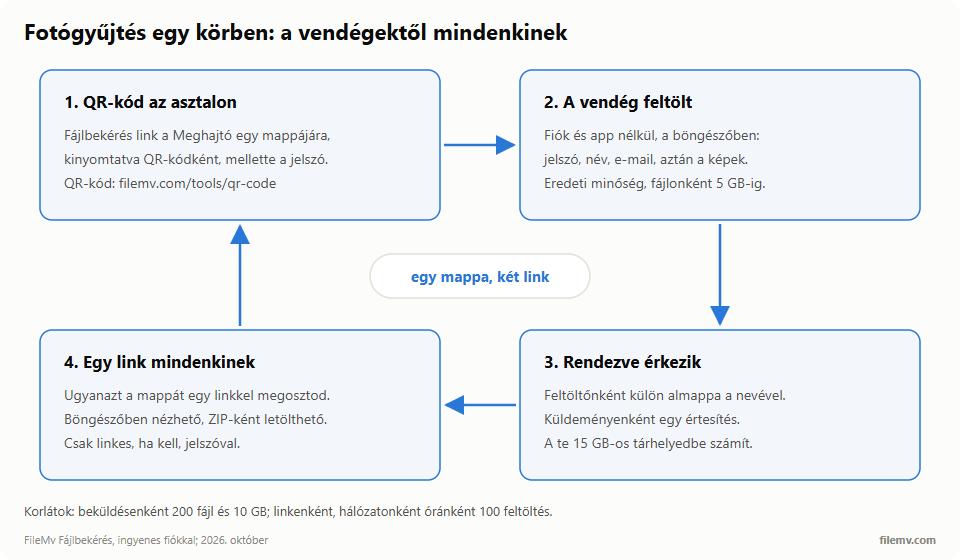
The hard part is not sending, it is collecting. FileMv's answer is File request: a share in reverse, where instead of you sending a link to files, the link receives files, straight into a folder of your Drive.
How to create one
- Sign in and create a folder in your Drive, for example "Wedding – guests' photos".
- Click the File request button in the folder's row.
- Set a password (at least 4 characters; a File request always has one) and, if you like, a title and a short note for uploaders ("Upload your photos from yesterday here, thank you!").
- Copy the link.
The File request button is in the folder's row on phones too, so you can create the link from your own phone, even at the venue. Guests upload from their phones as well, with no app needed.
What does the guest do?
They open the link, type the password, enter their name and email address, and pick their photos. No account is needed, no app either, and it works the same on iPhone and Android because everything runs in the browser. The upload happens on the open page; files over 100 MB (longer videos, for example) automatically upload in a resumable way, but the tab has to stay open until the end.
What do you get?
The photos arrive in your folder, in a separate subfolder per uploader, which FileMv names after the guest. If the same guest later sends more photos with the same email address, they go into the same subfolder. You get one notification per submission, not one per file.
Limits worth knowing
- A single file can be up to 5 GB.
- One submission can contain at most 200 files and 10 GB in total; anyone who wants to send more can start a new submission.
- At most 100 uploads per hour can arrive per link from the same network. If all the wedding guests upload over the same Wi-Fi, this can become a shared limit, so mobile data is not a bad choice.
- If someone types a wrong password five times within 15 minutes, they are blocked for a while.
- Uploads count against your 15 GB of storage. If it fills up, the guest only sees a generic error.
- You can close the link at any time; whatever has arrived stays in your Drive.
A QR code for the tables
The easiest way to hand out the link is as a QR code: the QR code generator makes a PNG or print-ready SVG in your browser, for free. Print it on a small card, add the password and a line ("Upload your photos here, no sign-up needed"), and put it on the tables or at the entrance. On a school trip, the same goes into the parents' group chat. The help center has the full description: Receiving files with a File request.
Google Photos, iCloud, WhatsApp or FileMv?
Most people answer "how do we collect the photos?" with the tools they already have. All of them work, but the trade-offs sit in different places.
| Google Photos shared album | iCloud shared album | WhatsApp group | FileMv File request | |
|---|---|---|---|---|
| Original quality | depends on the uploader's setting (Storage saver resizes to 16 MP) | full resolution from iOS 27; older albums 2048 px, video 720p | compressed by default, HD is recompressed too; original as a document | yes, the original file arrives |
| Does the guest need an account? | not to view; a Google account to add | from iOS 27, none needed on the web | yes, WhatsApp (phone number) | no: password, name, email |
| Mixed iPhone/Android | yes (app or browser) | from iOS 27 on the web; awkward before | yes | yes, in the browser |
| Limits | Google storage, 15 GB free, shared with Gmail and Drive | counts against the owner's iCloud storage (5 GB free); temporary album: 5,000 items, deleted after 30 days | documents: 2 GB per file; photos get scattered across the chat | 5 GB per file; 200 files / 10 GB per submission; counts against your 15 GB |
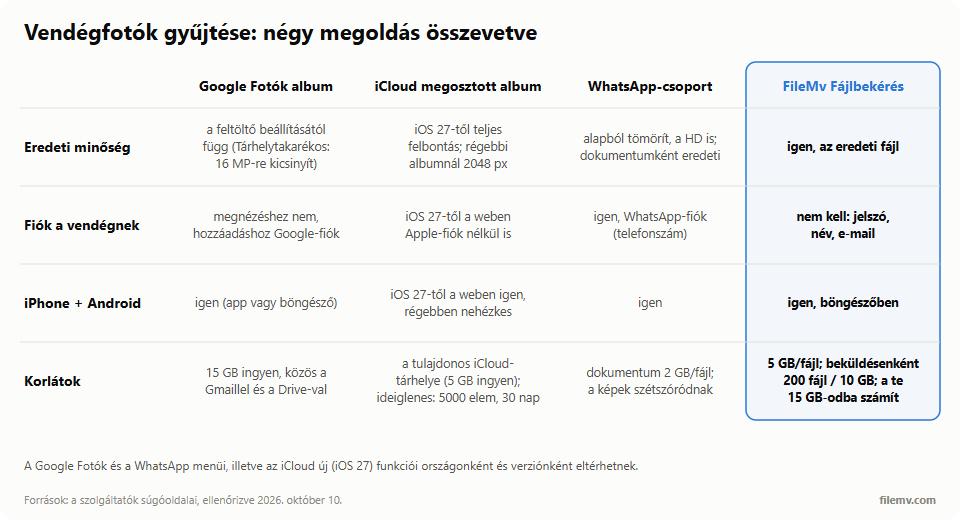
A few notes on the table:
- A Google Photos shared album alternative makes sense if some guests don't use a Google account, or if you definitely need the original files. Anyone can view a shared album through its link, but according to Google's documentation, adding photos is for Google Photos users, that is, signed in. If everyone uses Android and Google Photos, it is a convenient option.
- iCloud changed a lot in autumn 2026. Shared albums created with iOS 27 store photos at full resolution, and guests can join on the web without an Apple Account, with up to 100 participants. In exchange, the album counts against the owner's iCloud storage, which is 5 GB free, except for a "temporary" album, which deletes whatever nobody has saved after 30 days. Apple says not every feature is available in every country, and albums made on older systems still downscale photos to 2048 pixels.
- WhatsApp is the fastest but the worst archive: photos get scattered across the chat, compressed by default, and nobody is going to dig them out of an 80-person group later.
- FileMv's strength is that the guest needs no account of any kind, files arrive untouched, and they are sorted per uploader. The downside is that you have to create the link with a free account, and the guest has to type a name, an email and a password.
Original quality: where it gets lost and how to keep it
Messenger and WhatsApp recompress photos by default so they go through faster. Both now have an HD switch, which helps a lot, but WhatsApp's HD mode still compresses, and it sends video at no more than 720p. To get an untouched file through WhatsApp you have to attach the photo as a document, which none of your 40 guests will think of. With an upload link you don't have to think about it: the file arrives exactly as it is on the phone.
HEIC. iPhones shoot in HEIC by default, which many Windows PCs and older programs cannot open. On FileMv's share page HEIC photos still preview, because the server makes a preview from them; the downloaded file stays HEIC, though. If someone in the family cannot open it, the HEIC to JPG tool converts twenty photos at a time in the browser, without uploading them.
Videos among the photos. Event videos are often several hundred MB. File request accepts them up to 5 GB, and guests can watch them in the browser from the folder link. If someone still wants to forward one over a messaging app, the video compressor brings a clip under 25 MB or 10 MB, also in the browser.
Privacy: location, children's photos, passwords
Event photos often show children, homes or number plates, so it is worth spending a minute on the settings.
Location in photos. The EXIF data of phone photos often includes GPS coordinates. FileMv's share page may show camera details (model, shutter speed, aperture), but it never displays GPS location, and metadata is stripped from the preview images. The downloaded original file, however, is unchanged: if the photo contained a location, it will be in the ZIP too. The same applies to photos collected from guests. If you share the folder more widely, the metadata remover can delete the location first, twenty photos at a time, without quality loss, in the browser.
Children's photos: keep it link-only. New shares on FileMv are link-only by default: only people you send the link to can open them, and search engines are told not to index them. At upload there is a "Show in search engines" checkbox; leave it off for children's photos, and in your Drive keep the share's visibility on "Unlisted".
Password. To be safer still, put a password on the folder share and send the password in a separate message. A password-protected share never appears in search engines, and even the file names stay hidden until the password is entered. One detail: setting a password removes the automatic short link (filemv.com/s/…), so copy the link after setting the password.
Collections: for showcasing only. On FileMv you can also build a collection from your files, with a cover and a description, but it is not meant for private event photos. If you add a file to a public collection, the file itself becomes public and search engines may pick it up. An "Unlisted" collection, in turn, only shows visitors the public files, so with private photos it would look empty. Collections are good for a portfolio or a public gallery (details: Collections and visibility); for a family's or a class's photos, stick to the shared folder.
In short
Send out lots of photos with a shared folder and a single link, and collect your guests' photos with an upload link. On FileMv both work with a free account: guests upload to the File request link without an account and in original quality, photos arrive sorted per uploader, and the QR code generator lets you put the link on the tables. For children's photos, keep the share link-only and add a password.