
To put an image into a forum post, you first upload it to an image host and then paste the code you get into your post: classic forums (phpBB, MyBB, vBulletin, XenForo) expect BBCode ([url=…][img]…[/img][/url]), websites and blog editors expect HTML (<a><img></a>), and GitHub and developer sites expect Markdown ([](…)). All three do the same thing: they display the image and, when clicked, take the reader to the full version. This article gives you ready-made code in all three formats, shows which engine accepts which, what to do when the image won't show, and how to get the finished code in one click.
Why can't you just paste the image?
A forum post is text. If you paste an image from the clipboard, most forum editors either refuse it or route it through their own attachment uploader with a strict size limit. What the forum actually displays is a reference to an image stored somewhere else: the post only contains the image's address, and the browser loads it from there every time someone opens the thread.
Two things follow. First, you need a place where the image is publicly reachable — an image host, for example a free image upload service. Second, the image only shows in the forum for as long as that host is alive. When the host shuts down, the post is left with an empty frame — which is exactly what happened by the tens of thousands when the old Hungarian image hosts closed (we covered that in our article on Hungarian image hosting sites).
If you just want to send someone a link to an image (by email or message), see our article on how to make a link for an image. This one is about making the image appear inside the forum, blog or listing itself.
The three formats, with ready-made code
The examples below are exactly what FileMv's embed panel produces for an image after you upload it on the home page. In place of example1 and the long ID you will see your own share's details; you don't need to edit anything else by hand.
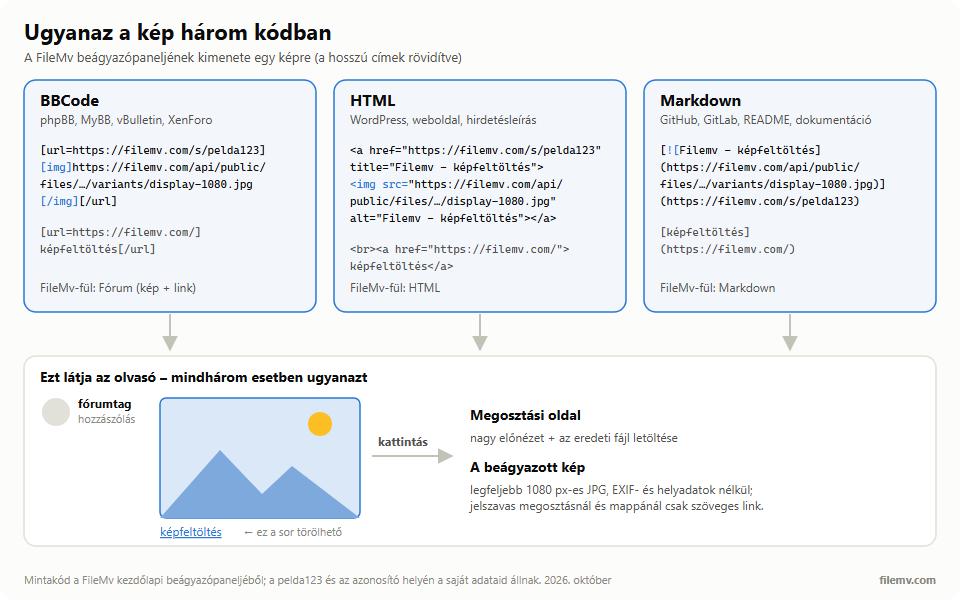
BBCode (for forums)
On FileMv this is the Forum (image + link) tab:
[url=https://filemv.com/s/example1][img]https://filemv.com/api/public/files/3f2a9c1e-5b7d-4e8f-a1c2-d3e4f5a6b7c8/variants/display-1080.jpg[/img][/url]
[url=https://filemv.com/en/]image upload[/url]
The inner [img]…[/img] displays the image; the [url=…]…[/url] around it makes it clickable. Order matters: [url] opens first and closes last.
HTML (for websites, blogs and listings)
<a href="https://filemv.com/s/example1" title="Filemv - image upload"><img src="https://filemv.com/api/public/files/3f2a9c1e-5b7d-4e8f-a1c2-d3e4f5a6b7c8/variants/display-1080.jpg" alt="Filemv - image upload"></a>
<br><a href="https://filemv.com/en/">image upload</a>
The src attribute of the <img> tag is the image address, alt is the alternative text (read out by screen readers and shown when the image fails to load), and the <a> around it is the clickable link.
Markdown (GitHub, READMEs, documentation)
[](https://filemv.com/s/example1)
[image upload](https://filemv.com/en/)
 is the image; put it inside the square brackets of a […](link) and it becomes clickable.
The last line: you can delete it
Each code ends with a short link to the FileMv home page — "image upload" for images, "file sharing" for other files. It does not affect the image or the link; if you don't want it, just delete it from the pasted code.
Clickable image or full-size image?
Image hosts used to give you two codes: a small thumbnail linking to the big image, and a "direct link" to the full-size file. For forums the first is usually the better choice: the thread loads quickly, and anyone interested clicks through.
FileMv deliberately offers only the first. The embedded image is a preview of at most 1080 pixels on its longer side, saved as JPG, with EXIF data — including location — removed. The image is clickable and leads to the share page, where the reader can view it large and download the original file. There is no raw link pointing straight at the original file. The reason: the share page keeps the original and the download in one place, while the forum only needs a smaller image that doesn't slow the thread down and doesn't carry your photos' location data onto a public page.
Two consequences worth knowing. An animated GIF shows as a still image in the embed, because the preview is a JPG; the reader sees the animation on the share page. And an image smaller than 1080 pixels is not enlarged — it appears at its original size.
Which forum or site accepts which code?
The engine running the forum or site decides which code works. If you don't know what runs underneath, look at the post editor's toolbar: if the image button inserts an [img] tag, it's BBCode; if it inserts , it's Markdown; if it's a visual editor, it expects HTML or a pasted image address.
| Where are you pasting? | Code | Note |
|---|---|---|
| phpBB, MyBB, vBulletin, XenForo and most classic forums | BBCode | Admins can switch off the [img] tag; then only a link works. |
| WordPress (Custom HTML block), site builders, shop and listing descriptions that allow HTML | HTML | Where the field takes plain text only, use the Link tab. |
| GitHub, GitLab, READMEs, documentation sites, Discourse-based forums | Markdown | GitHub loads external images through its own proxy. |
| Reddit comments, Discord messages | plain link | These don't display external images from Markdown; a plain link usually turns into a preview card. |
Some Hungarian forums (for example the big hardware and community sites) run their own engines with their own markup; we could not reliably verify those. In that case the forum's help page or the editor's image button tells you what it expects, and a preview of a test post shows quickly whether BBCode works.
What's the difference between FileMv's BBCode and Forum tabs?
The panel shown after an upload on the home page has two BBCode tabs, because forums have two kinds of need:
- BBCode: a text link, labelled "Filemv - image upload" for images:
[url=https://filemv.com/s/example1]Filemv - image upload[/url]. Use it when the forum doesn't allow images or you only want to link. - Forum (image + link): the clickable-image code above. Choose this for images; for other files (PDF, video, ZIP) it gives the same text link as the BBCode tab.
Common mistakes: when the image won't show
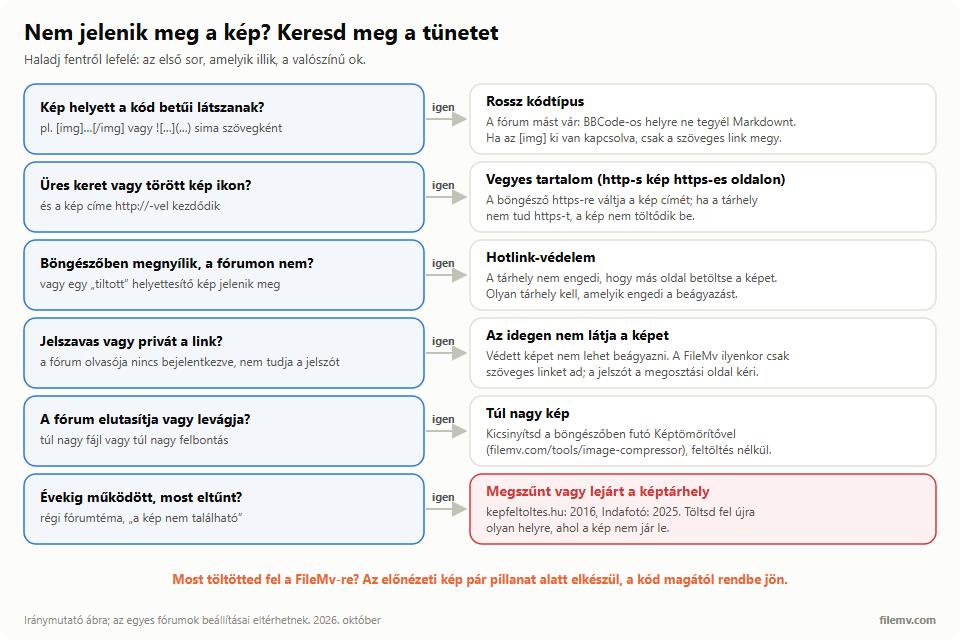
Wrong code type. If the post shows the characters of the code instead of an image, the forum doesn't speak the language you pasted: Markdown on a BBCode forum or vice versa. The forum may also have [img] switched off. Switch tabs, or stick with a text link.
Hotlink protection. Many hosts don't let other sites load their images (the browser sends which page requested the image, and the host blocks based on that). The image opens in the browser, but the forum shows an empty frame or a "forbidden" placeholder. You need a host meant for embedding; FileMv's embedded images have no such block.
An http image on an https page. Modern browsers automatically switch an image requested from an http:// address to https:// when the page is secure. If the old host doesn't support https, the image won't load. Always use code that starts with https:// — FileMv's codes do.
Image too large. Forum attachment uploaders and image proxies often limit file size or resolution, and an oversized image is slow on a phone. If you're uploading to the forum itself, shrink it first with the image compressor, which runs in your browser with a quality slider or a target file size. An image embedded from FileMv is capped at 1080 pixels automatically, so you don't have to worry about it there.
Private or password-protected link. Forum readers aren't signed in to your account and don't know the password. A protected image cannot be embedded so that strangers see it. For password-protected shares and folders FileMv therefore gives only a text link: the reader enters the password on the share page.
An image gone from an old thread. If the image showed for years and now doesn't, the host shut down or the image expired. kepfeltoltes.hu closed in December 2016 and Indafotó on 31 March 2025, and their images vanished from forum threads with them. The only fix is to re-upload it somewhere the image doesn't expire.
An embedded image won't become a search result
Many people worry that if they put an image into a forum, Google will find it among their files. Two things are worth separating.
The forum thread is a public page: whatever you paste there is visible to everyone reading the thread, and the forum page itself may show up in search engines. So don't put anything you wouldn't show to anyone into a public forum.
The FileMv share page, however, stays out of search engines by default: the share can only be reached with the link. At upload there is a "Show in search engines" checkbox, off by default. Only if you tick it can anyone find it on Google and in FileMv search, under its file name. Password-protected shares never appear in search. The embed code works regardless: the image shows in the forum even when the share isn't searchable.
FileMv's embed code, step by step
- Open the filemv.com home page and drop the image on it (or tap upload). No account needed: up to 10 files at a time, 100 MB per file.
- When the upload finishes, the Embed panel appears with five tabs: Link · BBCode · Forum (image + link) · HTML · Markdown. If you uploaded several images, each gets its own line, so you can copy them all in one go.
- Pick the tab, press Copy code and paste it into your post.
- Check the preview in the forum. If the image doesn't show right after uploading, wait a moment: the preview image is generated in the background and the code fixes itself — no need to copy it again.
The same panel appears collapsed, with three formats (BBCode · HTML · MD), in other places — click Embed to open it: in the upload window if you uploaded a single file without an account; on the share page itself, in its share dialog; and, with an account, in the share dialog of any file in your Drive. There the link text and the image's alt text are the file name, and the HTML code adds lazy loading (loading="lazy"); otherwise the code is the same.
For password-protected shares and folders the panel gives only a text link, without an image. The help article on embed codes sums up the details.
What matters most for forum images: files and links uploaded to FileMv don't expire, so the image you pasted won't vanish from the thread after a week or a month. Files are stored on servers in the EU (France).
In short
Forums need BBCode, websites HTML, GitHub Markdown — and all three point to an image stored elsewhere. If the image won't show, check the code type first, then https, hotlink protection and the password. FileMv gives you ready-made code in all three formats after upload, even without an account, with no expiry.