A phone video almost never fits in an email: one minute of 1080p footage is 60–130 MB, while Gmail stops at 25 MB and Outlook.com at around 20 MB — and that counts the whole message. So the answer is not an attachment but a link: upload the video to a file-transfer service (such as FileMv), put only the link in the email, and the recipient can watch it in the browser. If it absolutely has to be an attachment, compress it under 10 MB first, which works for a short clip. This article shows why videos are so big, which method suits which case, and how to do it step by step on iPhone and Android.
Why won't the video fit in the email?
Today's phones record at high resolution with a lot of data. The iPhone even shows roughly how much space a minute takes in Settings › Camera › Record Video; the table below shows those approximate values. On Android, expect the same order of magnitude, depending on the manufacturer and the setting.
| Recording setting | 1 minute in HEVC (H.265) | 1 minute in H.264 |
|---|---|---|
| 720p, 30 fps | approx. 40 MB | approx. 60 MB |
| 1080p, 30 fps | approx. 60 MB | approx. 130 MB |
| 1080p, 60 fps | approx. 90 MB | approx. 175 MB |
| 4K, 30 fps | approx. 170 MB | approx. 350 MB |
| 4K, 60 fps | approx. 400 MB | — |
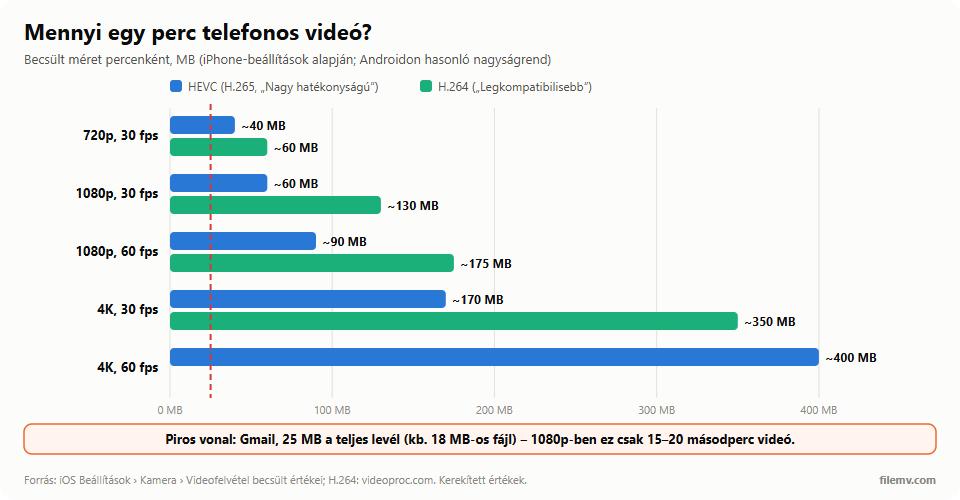
Two more things are worth knowing. First, email carries attachments encoded, which adds about 33% to their size, so Gmail's 25 MB limit really fits a file of only about 18 MB. Even in 1080p HEVC that is just 15–20 seconds of video. We collected the exact limits of other providers in our article on email attachment size limits.
Second, the difference between HEVC and H.264. The iPhone records in HEVC (H.265) by default, which stores the same quality in roughly half the size of the older H.264. The trade-off is that not every device plays it: Safari does; Chrome, Edge and recent Firefox usually do when the computer supports it in hardware — but on an older Windows PC the recipient may get a black screen or an error. An H.264 MP4, on the other hand, plays practically everywhere.
The options, ranked
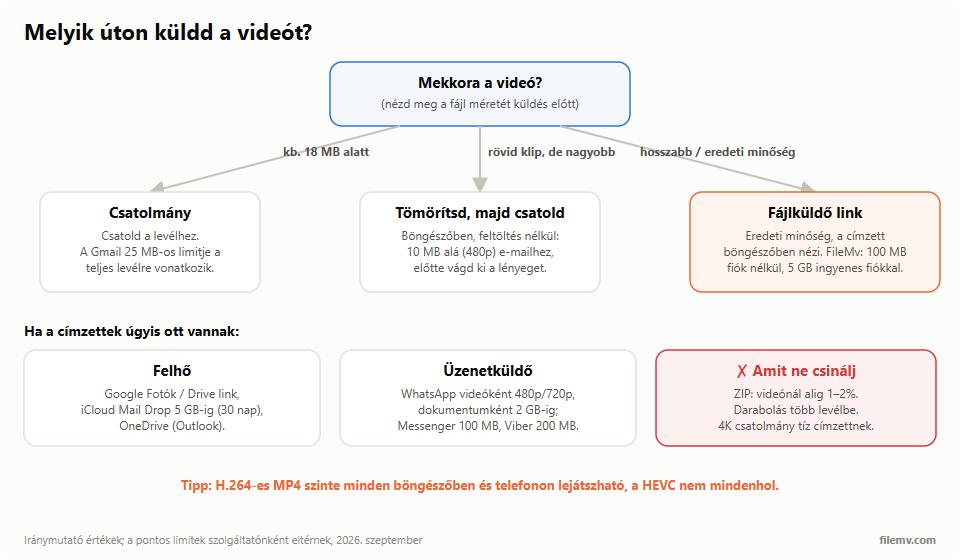
1. A link through a file-transfer service (right for most cases)
Upload the video, get a link, put it in the email. The video stays in original quality, it does not burden anyone's mailbox, and the recipient does not have to install anything.
With FileMv's free file sharing you can upload up to 100 MB per file without an account — roughly a minute and a half of 1080p HEVC video. With a free account you can go up to 5 GB, enough for a longer family recording or the full footage of an event, and you can put a password on the link. If an event leaves you with lots of photos and videos, sharing and collecting event photos shows how to gather them from the guests too. The file and the link never expire — nothing is deleted automatically — and storage is on servers in the EU (France). On the share page the recipient can play the video in the browser, without downloading it.
2. Compression, if it has to be an attachment
If the recipient insists on an attachment, or you only want to send a short excerpt, you can compress the video. FileMv's free video compressor runs in your browser — the video is not uploaded anywhere. It has three presets: under 10 MB for email (480p), under 25 MB for messaging apps (720p), and an "HD" mode that keeps the picture at 1080p, just in a smaller file. The result is an H.264 MP4 that any device can play. It accepts videos up to 500 MB and 10 minutes; it is faster on a desktop than on a phone.
Be realistic: 10 MB at 480p holds roughly one to two minutes at acceptable quality. If the video is longer, first cut out what matters with the video trimmer, which also runs in the browser and, when the selection starts at the beginning of the video, finishes in seconds without re-encoding. If the compressed file is still too big, switch to a link.
3. Cloud sharing: Google Photos, Drive, iCloud, OneDrive
If the video is already in the cloud, a sharing link is convenient. Above 25 MB Gmail automatically puts a Google Drive link in the message; but a Google account's 15 GB is shared with Gmail and Photos, and videos eat it quickly. The iPhone's Mail app sends up to 5 GB with Mail Drop, and the recipient has 30 days to download. Outlook does the same with OneDrive (5 GB of free storage). A Google Photos album link opens without an account.
4. Messaging apps: fast, but at the cost of quality
WhatsApp re-compresses a clip sent as a normal video (about 480p by default, 720p with the HD toggle). If you attach it as a document, it goes through in original quality up to 2 GB — but then the recipient has to download it. Messenger has allowed 100 MB files since April 2025, and Viber, by its own account, up to 200 MB. Fine for a family group, but when quality matters (a wedding, sports footage, work), a link is better.
What not to do
- Do not zip the video. MP4 and MOV are already compressed formats; a ZIP typically saves only 1–2%, and the recipient has to unpack it.
- Do not split it across several emails. The recipient will not put it back together.
- Do not send the same 4K clip to ten recipients as an attachment. Even if it goes through, it fills everyone's mailbox; one link is enough for all of them.
Step by step: sending a video from an iPhone
- Open filemv.com in Safari.
- Tap upload, choose Photo Library, and select the video.
- Wait for the upload (much faster on Wi-Fi), then copy the link.
- Paste the link into a message in the Mail app and send it.
If you would rather attach it: attach the video in the Mail app, and if it is too big, the phone offers Mail Drop. A tip for the future: if you mostly share your videos rather than archive them, 1080p at 30 fps in Settings › Camera › Record Video is plenty, and takes roughly a sixth to a seventh of the space of 4K at 60 fps.
Step by step: sending a video from Android
- Open filemv.com in Chrome.
- Tap upload and pick the video from the Gallery or from Files.
- Once uploaded, copy the link.
- Paste the link into the Gmail app and send it.
If you attach a video over 25 MB in Gmail, Gmail replaces it with a Google Drive link, which also works — it just takes up your Drive storage.
The recipient's side: play in the browser or download
Most recipients do not want to download the video; they want to watch it. On FileMv's share page the video starts in a player, without signing up; if their browser cannot play the format (an HEVC recording on an old computer, say), the download button is still there. To be safe, send an H.264 MP4: the video compressor produces one, or on an iPhone choose "Most Compatible" in Settings › Camera › Formats.
Cloud links (Drive, Photos) also play in the browser; Mail Drop and videos sent as documents in messaging apps need a download. If you are interested in the general methods for sending large files too (compression, splitting, giant mail), our article on sending large files by email covers them in detail.
In short
Do not send a phone video as an attachment — send it as a link: uploaded to FileMv it goes up to 100 MB without an account and up to 5 GB with a free one, in original quality, and the recipient can watch it in the browser. If it really has to be an attachment, the video compressor brings a short clip under 10 MB without uploading it.