An image becomes a link in three steps: upload it to an image host, copy the link, and paste it wherever you want to send it (Messenger, WhatsApp, email, a forum). On a free image upload site such as FileMv you don't even need an account: you can drop up to 10 images at once, up to 100 MB each, and every image gets its own link that doesn't expire. The recipient clicks the link and sees the image in the browser, with nothing to install. Below we walk through it on Android, iPhone and desktop, and show what to watch out for if you don't want just anyone to find your photo.
The short answer: 3 steps
- Upload. Open filemv.com and drag your images onto the upload area, or tap it and pick them. Without an account you can send 10 at a time.
- Copy the link. When the upload finishes, every image has its own link next to it with a Copy button. If you uploaded several, the All links button copies them all at once, one per line.
- Paste. Paste the link into the chat, the email or the post. The recipient opens a share page where they see the image and can download it if they want.
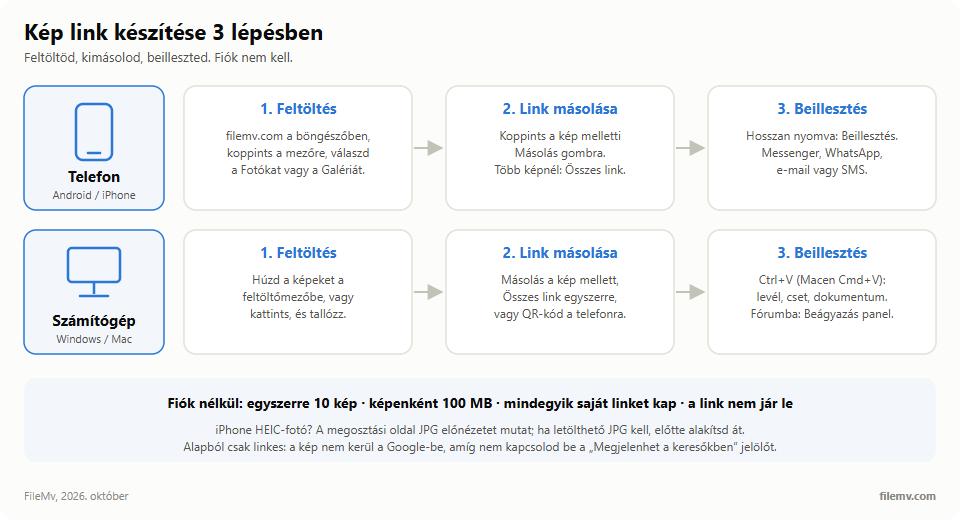
One important detail: without an account there is no single link for a whole batch. Upload ten images and you get ten links. If you want to share a whole album behind one link, you need a free account, which lets you share folders. The exact rules for guest uploads are in the help article on sending files without registration.
Making an image link on Android
On Android, the browser is the way in. FileMv isn't an installable app, so it doesn't show up in the share menu of the Gallery or Google Photos; you start the upload in the browser and then share the link anywhere you like.
- Open filemv.com in Chrome (or any browser).
- Tap the upload area. Your phone asks where to pick from: look for photos under Photos or Gallery, and for downloaded images in the Files app. You can select up to 10 images at once.
- If asked, confirm you're not a robot, then wait for the upload to finish. On mobile data even a 5–10 MB photo can take a few seconds; Wi-Fi is faster.
- Tap the Copy button next to the image. The link is now on your clipboard.
- Open Messenger, WhatsApp or Gmail, long-press the message field and choose Paste.
Why not just send the picture itself? You can, but chat apps typically recompress photos, while the link points to the original file. And when you share with many people — in a forum, a group or by email — the link is the same for everyone and takes up no space in their inboxes.
From an iPhone: the HEIC question
On an iPhone the steps are the same: open filemv.com in Safari, tap the upload area, choose Photo Library, select your images, and once they're uploaded use the Copy button to move the link into Messages, Messenger or Mail.
The difference is the format. By default the iPhone shoots in HEIC (HEIF), because it stores the same quality in a smaller file than JPG. That can cause two problems on the recipient's side:
- Most browsers can't display it. Today only Safari shows HEIC images natively; Chrome, Edge and Firefox don't.
- A Windows PC won't always open it without an extra extension, and an older Android phone or a web form may reject it too.
The iPhone sometimes converts to JPG on its own when sharing, but not always, so it helps to know what happens after the upload. FileMv creates a JPG preview on the server from a HEIC photo, so the recipient sees the image on the share page in any browser, including Chrome on Windows. The download button, however, delivers the original file, so anyone who downloads it gets a HEIC.
If you want to be sure the recipient can open the downloaded file anywhere, convert it first. The HEIC to JPG tool runs in your browser, nothing is uploaded, and it converts twenty images at a time. The other option is a phone setting: under Settings › Camera › Formats, "Most Compatible" makes new photos JPG, at the cost of more storage.
From a computer: drag, drop, copy
On a computer, drag and drop is fastest: open filemv.com and drag your images from File Explorer or Finder onto the upload area. If you'd rather browse, click the area and pick the files; hold Ctrl (Cmd on a Mac) to select several.
After the upload you'll see a list of your images, each with its link and a Copy button. With several images, All links copies every link in one go, one per line, which stays readable when pasted into an email or a document. You can also get a QR code for the link if you want to move the image to your phone, or someone else's.
Two useful details:
- Big files. An ordinary photo is far below 100 MB, but a panorama, a scanned poster or a TIFF can easily go over. In that case the image compressor shrinks it in your browser without uploading it, or a free account lets you upload files up to 5 GB each.
- Screenshots. Save the screenshot to a file first (on Windows with the Snipping Tool; on a Mac, Cmd+Shift+4 already saves a file to the desktop), then drag that in.
Plain link or embed?
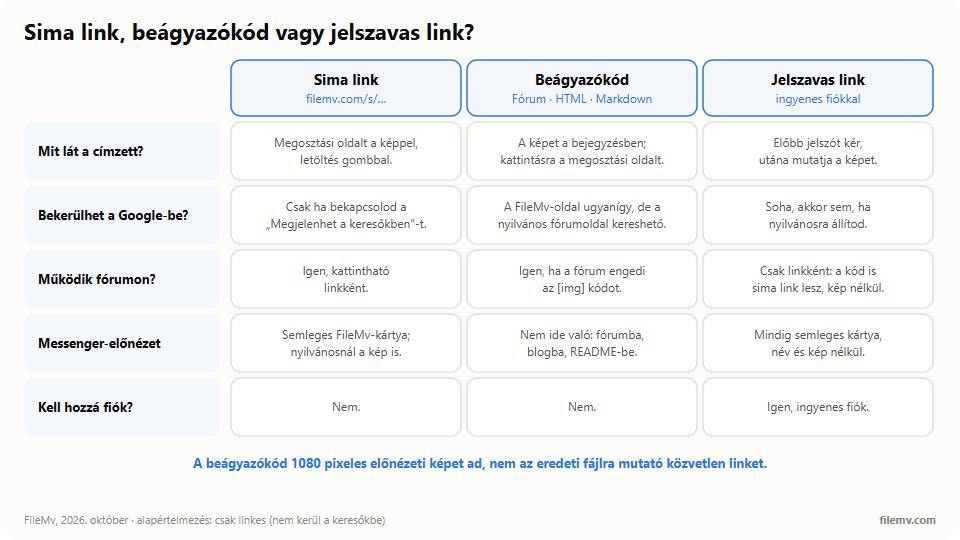
A plain link takes people to a share page: the recipient clicks it and sees the image in the browser. That's what you want for chats, email and text messages.
If you want the image to show directly in a forum post, a blog or a README, you need an embed code. After the upload FileMv shows an Embed panel under the links, with five tabs: Link, BBCode, Forum (image + link), HTML and Markdown. For an image, the Forum, HTML and Markdown tabs give you a clickable preview image (a JPG of at most 1080 pixels) that leads to the share page; there is no direct link to the original file in the code. The code also ends with an "image upload" credit line, which you're free to delete.
Which forum accepts which code, and what to do when the image doesn't show up, is covered in a separate article: embedding an image in a forum with BBCode, HTML and Markdown. And if you'd like to compare FileMv with other Hungarian image hosts, see our roundup of Hungarian image hosting sites.
Link-only or public? The search engine checkbox
Below the upload area there's a checkbox: "Show in search engines". It's unchecked by default, and in most cases that's exactly right.
- Unchecked (the default): the image is link-only. Anyone who has the link can open it, but the share page doesn't go into Google and doesn't show up in FileMv's own search either.
- Checked: the share is public. Google may index the share page, it can be found in FileMv search, and the file name is visible in the result.
If you switch it on, rename the image first. IMG_4821.jpg gives nothing away; anna-smith-birthday-2026.jpg does, and that name can appear in a search result. Note too that your browser remembers your choice and keeps it for the next upload, so if you switched it on once, check it again before the next image.
With a free account you can also put a password on the link. A password-protected share never appears in search engines, even if it's set to public, and its embed code is just a plain link, without the image.
What does Messenger or Facebook show as a preview?
When you paste a link into Messenger or a Facebook post, it fetches a preview card. FileMv protects your privacy here too: for a link-only or password-protected share the card is neutral ("Shared via FileMv", with FileMv's own image) and shows neither the file name nor the picture. The recipient of course sees the photo once they click. If the share is public (uploaded with the checkbox on), the card shows the image and the file name, with a large preview.
Location (GPS) and EXIF
A phone photo carries a lot of hidden data: the device model, when it was taken, and, if location was on, the exact GPS coordinates. FileMv's share page shows a few camera details (such as the device, shutter speed and resolution), but never publishes the GPS location, and the preview and embedded images carry no metadata at all.
One thing to keep in mind: anyone who clicks Download on the share page gets the original file, with its original metadata. If the photo was taken at home and you don't want the address to be readable from the downloaded file, strip the metadata before uploading with the metadata remover, which also runs in your browser.
In short
Making a link for an image: upload, copy, paste. On FileMv you don't need an account, you can send 10 images at a time at up to 100 MB each, the link doesn't expire, the image is link-only by default, and the GPS location is never published. If the image needs to show inside a forum post, use the embed code; if you're sending from an iPhone and the recipient needs a downloadable JPG, convert it first.