You can "send a file by email" only while it is under 20–25 MB. Anything bigger travels not as an attachment but as a link: you upload it to a file-transfer service or a cloud drive, and only the download link goes in the message. That is not a workaround — it is simply how large files are sent today, and it takes two minutes, no account, no cost.
This article shows exactly where the limit sits at each email provider, how to decide which method to use, and what the Hungarian and international free file-transfer services offer in September 2026.
Why does the message bounce? The real limits of email providers
Behind the error ("attachment too large", "message size exceeds limit", or the message simply bouncing) there are two limits, not one.
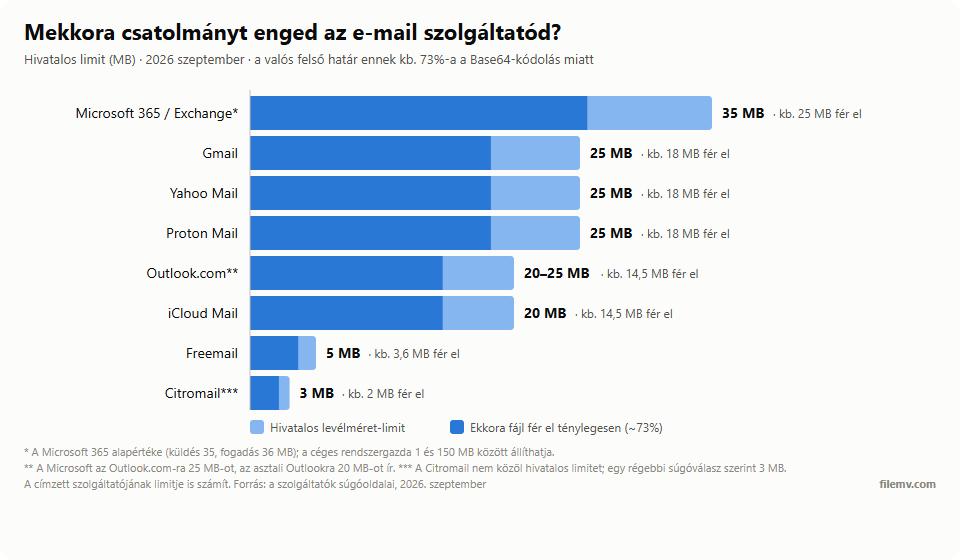
The first is your own provider's message size limit. Gmail, Yahoo and Proton allow 25 MB, iCloud Mail 20 MB, Outlook.com 20 or 25 MB depending on which Microsoft help page you read, and business Microsoft 365 mailboxes 35 MB by default. The Hungarian free providers are far stricter: Freemail allows 5 MB and Citromail, according to an older help answer, just 3 MB as a plain attachment — above that, both automatically send the file as a "giant mail", i.e. a link that expires after a week. We collected every provider's send and receive limits in one table, and Gmail's in a separate article.
The second, which few people know: the limit applies to the whole message, not to the file. Email carries attachments in Base64 encoding, which inflates them by roughly 33%. Under a 25 MB limit an 18–19 MB file fits; under 20 MB, about 15 MB. A 22 MB PDF sent from Gmail "fits" officially and bounces in practice.
And there is a third party: the recipient's provider. Your 24 MB message may leave fine and still get stuck at a corporate Exchange server set to 10 MB. The weakest link in the chain wins, and you know nothing about it. That is why we say: above 15 MB, stop thinking in attachments.
Which method should you pick? Two questions and you have the answer
Before going through the methods, check the file size (Windows: right-click → Properties; Mac: Cmd+I) and answer two questions: how big is the file, and is the content sensitive?
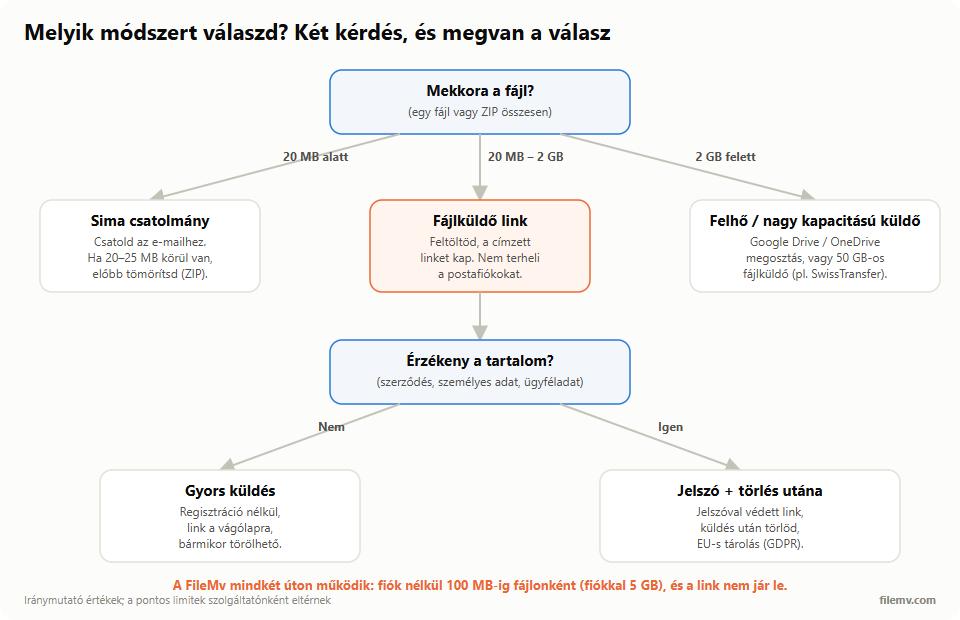
In practice most cases land in the middle branch: a photo series, a presentation with video, a print-ready PDF, a three-minute phone video (300–500 MB on its own) all fall between 20 MB and 2 GB, and all go most comfortably as a file-transfer link. For video, our guide to sending a video by email walks through it step by step.
Method 1: a file-transfer service with a link (the right choice for most cases)
Upload the file to a transfer service, get a link, put the link in the email (or a chat, Messenger, anything). The recipient clicks and downloads. They need no account, install nothing, and if you uploaded it from an account, you can delete the file whenever you want.
Here is how with FileMv: open filemv.com, drag the file in (or several files, no ZIP needed), wait for the upload, copy the link. No sign-up; free up to 100 MB per file without an account and up to 5 GB with a free account; the file and the link never expire — nothing is deleted automatically — and it is stored on servers in the European Union (France), which matters for GDPR. For sensitive files, a free account also lets you put a password on the link.
When this is the right choice: practically always, when the file is between 20 MB and a few GB and it is a one-off send. When it is not: if several of you work on the same file for weeks, that is what a cloud drive is for (see method 3).
Method 2: compression (ZIP), if you are just over the line
If the file is around 20–30 MB, a ZIP can bring it under the limit — but only for certain file types. Text documents, Excel sheets, PowerPoint files and vector graphics compress well, often by 50–80%. Photos (JPG), videos (MP4) and PDFs are already compressed; a ZIP barely helps there, often 1–2%.
Windows: right-click the file → "Send to → Compressed (zipped) folder"; Mac: right-click → "Compress". If the ZIP is still above 15 MB, stop struggling and go back to method 1.
Method 3: cloud drive sharing (Google Drive, OneDrive, iCloud)
Gmail automatically offers to put files over 25 MB on Google Drive and link them; Outlook does the same with OneDrive, and Apple Mail with Mail Drop (up to 5 GB). Convenient if you already use that cloud.
The downsides, and why this is not our first recommendation: the file occupies your storage until you delete it (a free 15 GB Google Drive fills surprisingly fast with video); the sharing setting is easy to get wrong ("anyone with the link" versus specific addresses); and the recipient often needs a Google or Microsoft account if the setting is not public. For one-off sends the transfer service is simpler; for collaboration the cloud is better.
Method 4: your mail provider's own "giant mail" feature
Freemail above 5 MB and Citromail above a few MB switch automatically to a link, up to 1 GB, and the link lives for a week. If you use these, there is nothing to do — the system handles it. Two things to know: the recipient lands on a Hungarian-language download page, which can look odd to a business partner abroad, and you cannot set the expiry.
Method 5: splitting the file (last resort only)
7-Zip or WinRAR can cut the file into parts — say, 15 MB each — which you send in separate emails and the recipient reassembles. This is the 2005 solution, and it only makes sense if the recipient is in a strictly locked-down environment where no external link can be opened. In every other case, method 1 saves ten minutes on both sides.
Free file-transfer services side by side
If you do not choose FileMv, these services work in September 2026 on a free plan. The important differences: how large a file they allow, how long the link lives, whether sign-up is required, and where the data is stored.
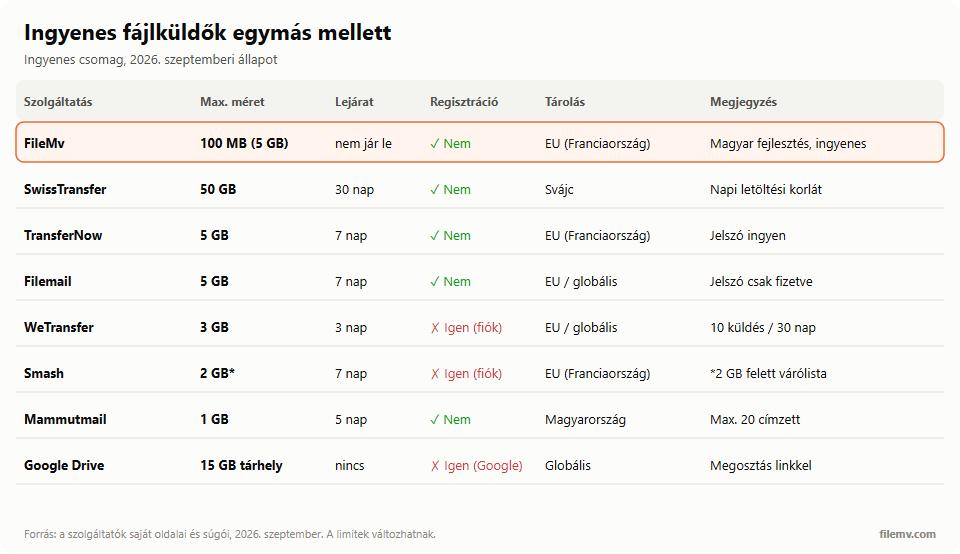
A few things the chart does not show. WeTransfer's free plan has required an account since 2025, allows 10 transfers a month, and the link expires after 3 days — too little for many private users. SwissTransfer's 50 GB limit stands out; the link lives 15 days by default, extendable to at most 30. Smash works without sign-up but puts files over 2 GB in a queue. We compared the alternatives to WeTransfer in detail. The Hungarian Mammutmail works up to 1 GB, for 5 days, up to 20 recipients. Toldacuccot, for years the Hungarian favourite, shut down in July 2022; we wrote a separate article about its alternatives.
In short
Under 20 MB attach it, above 20 MB send a link — that is the whole story. FileMv's free file sharing works without an account, up to 100 MB per file (5 GB with a free account), and the file never expires — nothing is deleted automatically. Try it with your next large file, and you will not meet the "attachment too large" message again.