From a personal Gmail account you can attach at most 25 MB to a message, and you can receive messages of up to 50 MB. If you attach something bigger, Gmail does not show an error — it quietly turns it into a Google Drive link. The safe limit is lower still: roughly 18 MB, because attachments travel encoded and the recipient's server measures the inflated size. Anything larger is best sent as a link from the start — for example with FileMv's free file sharing, no sign-up needed.
This article is about Gmail specifically: where exactly the limits are, what happens above 25 MB, what the recipient sees, how the web, Android and iPhone apps differ, what the error messages mean, and what to do when your 15 GB is full. If you are looking for every provider's limit in one table, see our article on email attachment size limits.
Gmail's limits in one place
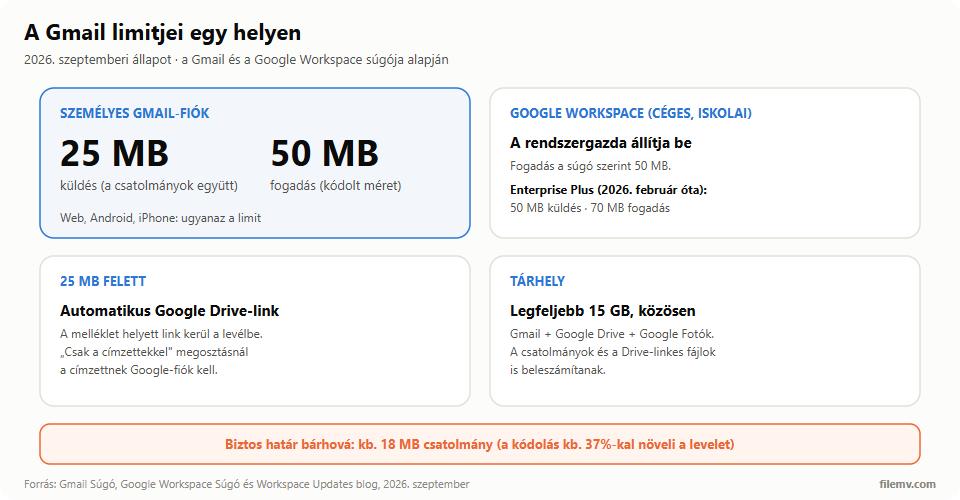
Gmail's help gives a single number for personal accounts: "For personal Gmail accounts, the limit is 25 MB." That applies to the combined size of the attached files, so five 6 MB photos no longer fit in one message, even though each is small.
Receiving has more headroom: according to Google, you can receive messages of up to 50 MB, and that figure is already the size after encoding. For work and school (Google Workspace) accounts both limits are set by the administrator — more on that below.
Why is about 18 MB the safe limit?
Email was designed to carry text, so your mail client turns attachments into text with Base64 encoding. That makes 4 characters out of every 3 bytes and also breaks the result into lines, so the file grows by roughly a third. For its own receiving limit Google counts on an increase of about 37%, which is exactly what you get once the line breaks are included.
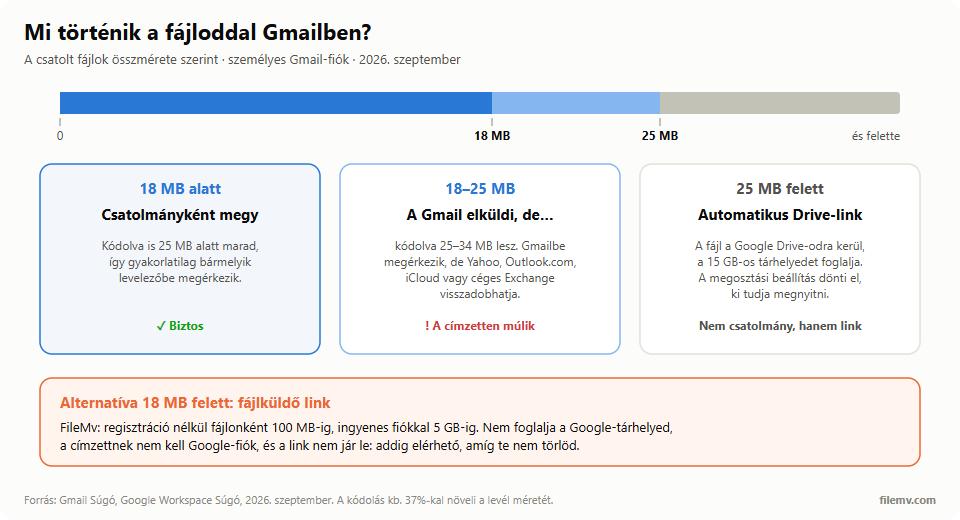
When sending, Gmail looks at the size of the attached files, so it still accepts a 25 MB file. But encoded, the message becomes about 34 MB, and that is the number the recipient's server sees. Gmail to Gmail it goes through (50 MB receiving limit), but a Yahoo, Outlook.com, iCloud or corporate Exchange mailbox stops somewhere around 20–36 MB. If you want the message to reach anyone reliably, keep the attachments under 18 MB in total: encoded that is about 24.6 MB, which still fits a 25 MB limit.
The other providers' numbers and the full encoding example are collected on our email attachment size limits page.
What happens above 25 MB? The automatic Drive link
If the attachments add up to more than 25 MB, in the words of the help page, "Gmail automatically removes the attachment and adds it as a Google Drive link in the email." The file is uploaded to your own Google Drive, and a link goes into the message. In the English interface this is announced with "Your file is larger than 25 MB. It will be sent as a Google Drive link".
The recipient gets not an attachment but a Drive card at the bottom of the message. Whether they can open it depends on the sharing setting, and this is where most sends go wrong:
- Access. When you send, Gmail checks whether the recipients can access the file and, if not, offers to change the sharing. There are two main options: "Anyone with the link" (no Google Account needed), or sharing only with the email's recipients. According to the help page, the latter only works with a Google Account: someone who uses a non-Google address, or receives the message through a mailing list, will not be able to open it and can only request access.
- Forwarding. "Anyone with the link" means that whoever the message is forwarded to can download the file too.
- The file takes up your storage. The video on Drive counts against your 15 GB until you delete it. But if you delete it, the link in the old message is dead.
- Google Docs files. Files created in Google Docs, Sheets or Slides can only be sent as a Drive link, never as an attachment.
Web, Android, iPhone: is there a difference?
Not in the limit: Google's help describes the same 25 MB and the same Drive-link behaviour for Gmail on a computer, on Android and on iPhone. The difference is in how you attach. In the mobile apps you can select at most five photos at once, and Gmail on iPhone inserts a single photo into the body of the message by default — you have to choose to send it as an attachment. If you attach a large video from your phone, remember that the Drive upload uses your mobile data.
One thing is the same everywhere: Gmail blocks certain file types outright, whatever their size. That includes .exe, .bat, .apk, .dmg, .iso and dozens of other extensions, even inside a ZIP. It also blocks password-protected archives with archived content, which rules out the "zip it with a password and send it" trick.
The error messages you may see
- "Your file is larger than 25 MB. It will be sent as a Google Drive link": not an error, just the Drive link being announced. From here, the sharing setting is your job.
- "552 5.3.4 Your message exceeded Google's message size limits.": you see this in a bounce when someone tried to send an oversized message to a Gmail address. It is one of Google's documented SMTP error codes.
- "552 5.3.4 Message size exceeds fixed maximum message size" or similar: typically sent back by the recipient's server (often a corporate Exchange server) when the encoded message is larger than it accepts. Everything was fine on Gmail's side; the recipient's server is the bottleneck.
- Storage full: when your Google storage runs out, Google says sending and receiving email can be affected, and you cannot send attachments.
Google Workspace: business Gmail, different rules
For work and school accounts, the help page says the Google Workspace administrator sets both the sending and the receiving limit, so your organisation may be stricter than 25 MB. According to the Workspace help, the receiving limit is 50 MB (encoded), and 70 MB on the top Enterprise Plus plan.
Since February 2026, Enterprise Plus subscriptions also have a higher sending limit: according to Google's announcement, files of up to 50 MB can be attached directly there, if the administrator allows it. That only helps on your side, though: a 50 MB attachment is close to 70 MB encoded, which neither a personal Gmail account (50 MB), a Yahoo mailbox (25 MB) nor a default Microsoft 365 mailbox (36 MB) will accept. When sending to outside partners, the 18 MB rule of thumb still applies.
Is your 15 GB full? The storage Gmail and Drive share
A Google Account comes with up to 15 GB of free storage, shared between Gmail, Google Drive and Google Photos. Attachments count, and so do the large files you send as Drive links. If you regularly send video from Gmail, the Drive links will eat that storage within months.
To free up space, type has:attachment larger:10M into Gmail's search box. It lists messages with attachments over 10 MB, which usually take the most room. In Drive, check the "Shared" section and old videos.
What to do above 25 MB: practical solutions
1. A file-transfer link (right for most cases). Upload the file, get a link, put it in the Gmail message. It does not use your Google storage, there is no sharing setting to get wrong, and the recipient needs no Google Account. FileMv needs no sign-up: up to 100 MB per file without an account, up to 5 GB with a free account. The file and the link never expire — nothing is deleted automatically — and the file sits on servers in the European Union (France). For sensitive material, a free account also lets you put a password on the link.
2. For Office files, compress the pictures, not the file. A .docx, .xlsx or .pptx is itself a ZIP package inside, so zipping it again barely reduces its size. In a bloated Word or PowerPoint file the culprit is almost always the inserted photos: the File menu's "Compress Pictures" command (plus deleting cropped areas) often shrinks the file to a fraction. In PowerPoint, embedded video and audio can be compressed too.
3. A Drive link, on purpose. If the recipient uses Google anyway, or you will work on the file together, the Drive link is fine. Just check who can access it before you send.
4. Splitting, as a last resort. Cutting a file into parts under 18 MB and sending them in separate messages works, but it is a chore on both ends. And remember: Gmail does not let password-protected archives through.
For step-by-step instructions on each method, see our guide on sending large files by email; for videos, our article on sending video by email will help.
In short
Gmail's 25 MB limit is really two limits: 25 MB that Gmail will send, and about 18 MB that will reliably arrive. Anything bigger Gmail turns into a Drive link if you let it — or you send it as a link yourself, on purpose. FileMv works without an account, up to 100 MB per file (5 GB with a free account), does not touch your Google storage, and the link never expires — nothing is deleted automatically.